

Shopify Pre Order with Deposit (Partial Payment)
Most Shopify pre order apps can take a deposit or partial payment only through Shopify Payments, and most Indian stores use Razorpay, Cashfree or PayU. We set up pre orders that take a fixed booking amount, such as ₹999, through your existing gateway, show the balance on the product page, and track every booking as a Shopify order.
Prices shown are starting points. The final cost depends on the size and scope of your project, and we confirm it in writing before any work begins.
You turn on a pre order app, find the deposit or partial payment setting, and read the small print: it only works with Shopify Payments. If your checkout runs on Razorpay, Cashfree, PayU or CCAvenue, the app takes the full price up front, or nothing at all.
Full payment on a pre order is a quiet cost. Stock can take weeks, customers change their minds, and when they ask for a refund many gateways keep the fee they charged on the payment. If your gateway charges 2% and a customer cancels a ₹1,90,000 camera they paid for in full, that is about ₹3,800 gone on one refund. On a ₹999 booking it is about ₹20.
We set up pre orders on your store that take a fixed booking amount at checkout, through whatever gateway your checkout already shows. The product page tells the customer what they pay today, what the balance is, and when the item is expected. Your team sees every booking as a normal Shopify order, with the item and the balance written on it.
When the stock arrives, your team sends the customer a Shopify invoice for the balance and ships. If the customer cancels first, you refund the booking amount only. We hold back the exact way it is built, because that is what you pay us for; the result is what this page describes.
Want the full story of how the booking was solved on a live store, and what it changed? Read the case study.
Case study
A camera and lens retailer moving 107 pre order products to a ₹999 booking
The problem
An Indian camera and lens retailer on Shopify sold its pre order stock through an older pre order app, taking the full price at checkout. Its only gateway was Cashfree. The owner wanted to take a small booking instead, so that when a customer cancels a camera that takes weeks to arrive, the refund does not cost a gateway fee on the whole price.
The store moved to a newer pre order app first. Its partial payment setting said it works only with Shopify Payments, so the deposit was not possible there.
What we did
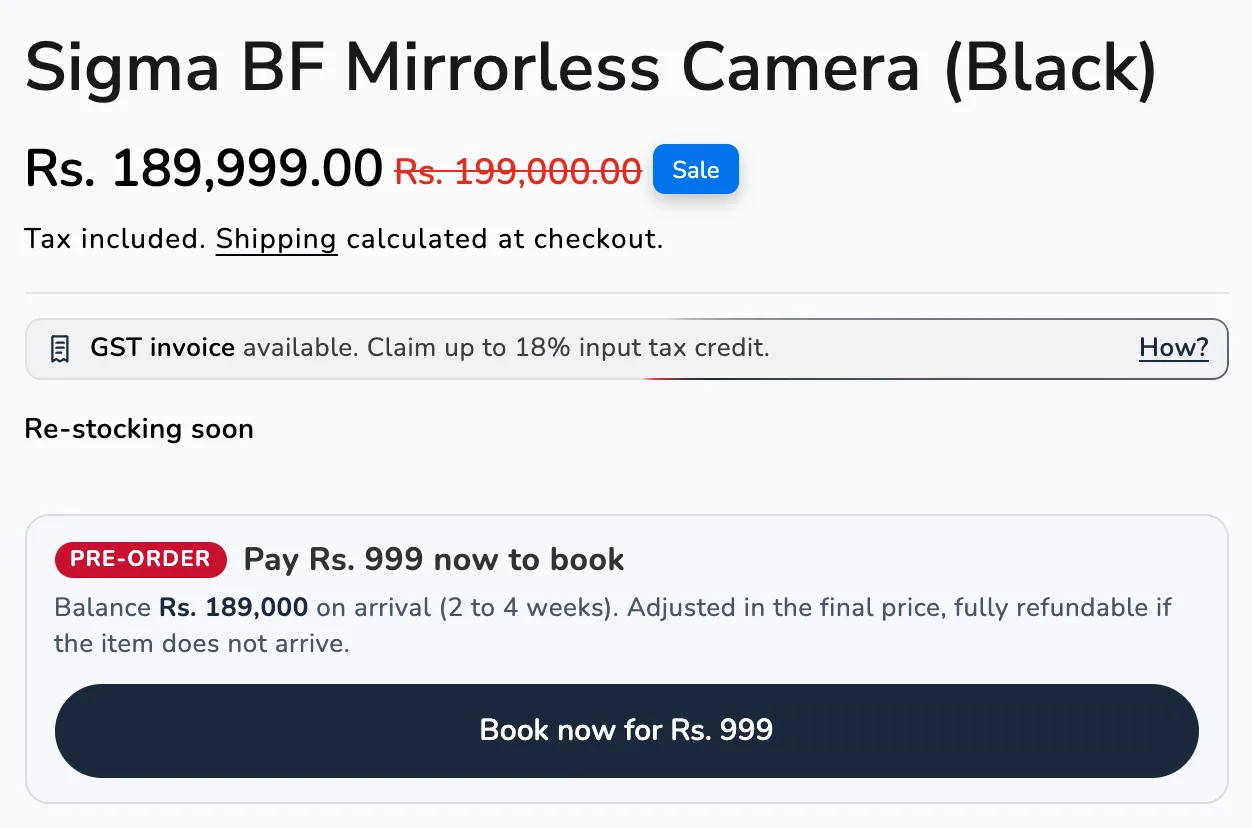
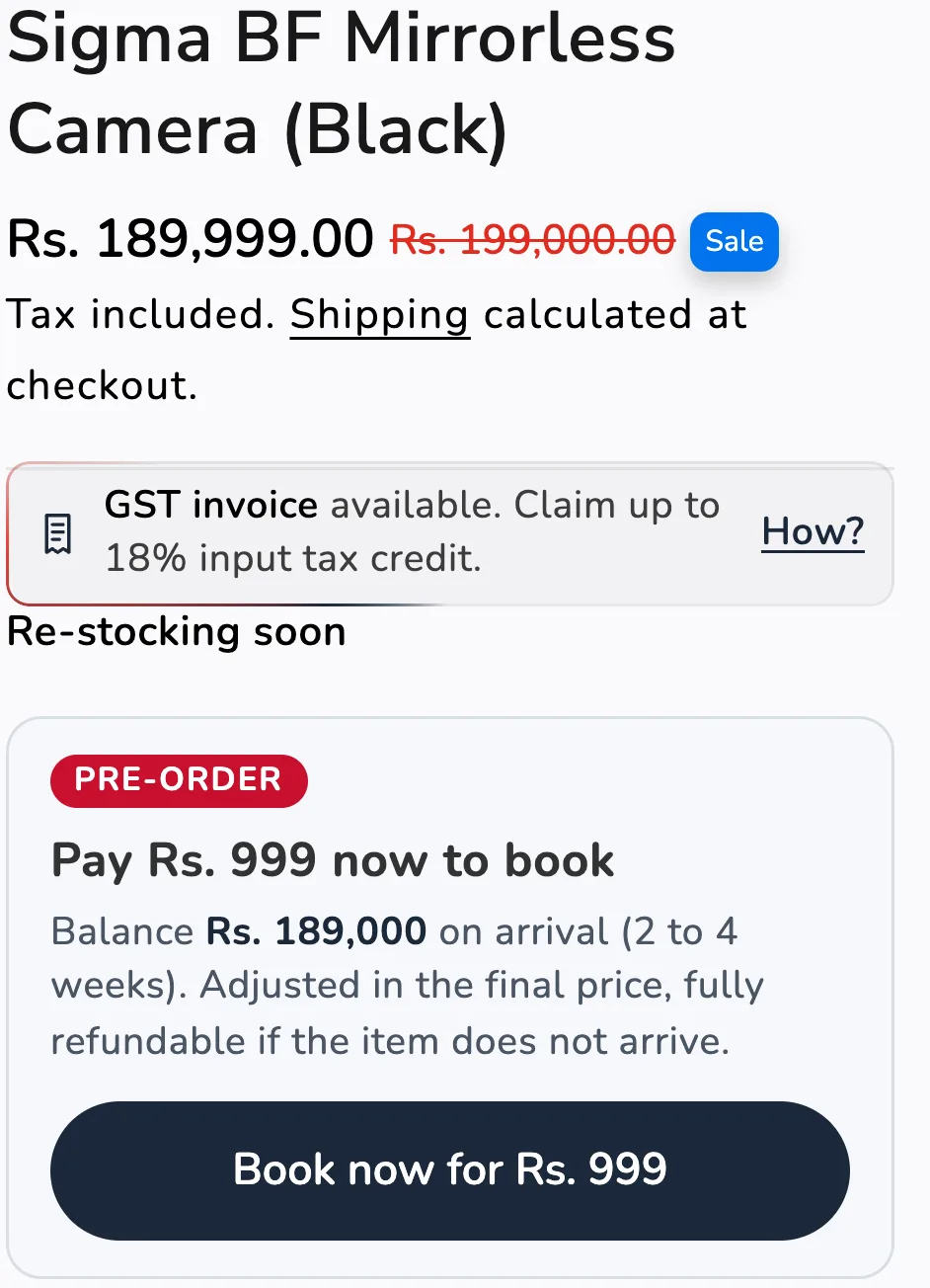
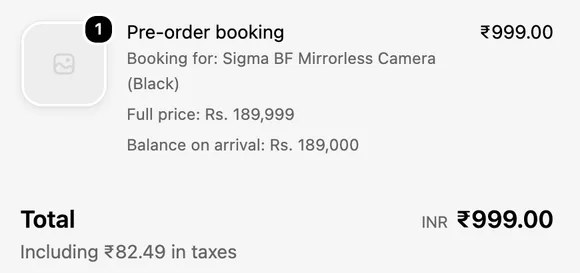
We set up a ₹999 booking that is paid at the store's normal Cashfree checkout, and switched it on for all 107 pre order products. The product page now shows the booking amount, the balance due on arrival and the expected wait of 2 to 4 weeks. The checkout line records the item, the full price and the balance.
Everything was built on a copy of the live theme, tested on desktop and on an iPhone sized screen, and taken to the checkout before the owner approved it. The old theme was kept as a way back.
The result
A customer booking a ₹1,89,999 camera now pays ₹999 and sees a balance of ₹1,89,000 before paying. Each booking lands in Shopify as an order with the item written on it, so the team can see every pre order in one list. A cancellation now means refunding ₹999, not the full price.
What the booking looks like
A camera retailer
What changes on your store
A booking button on pre order products
Out of stock pre order items show Book now for your booking amount instead of the full price add to cart.
The balance, shown before they pay
The product page states the booking amount, the balance due on arrival, and the expected wait, so nobody is surprised later.
Normal buying when stock is back
As soon as a variant is in stock, the booking box disappears and the normal add to cart returns on its own.
Your gateway, unchanged
The booking is paid at your normal checkout. No new gateway, no new account, no change to Shopify Payments.
What your team gets
Every booking is a Shopify order
Customer, item, variant, full price and balance on each order, so pre orders are tracked in the admin you already use.
A two minute balance routine
A written routine for sending the balance invoice when stock arrives, and for refunds and cancellations.
One switch per product
Turn bookings on or off for any product without touching code.
What's included
- Booking amount at checkout through your existing gateway (Razorpay, Cashfree, PayU, CCAvenue and others)
- Booking box on pre order products, styled to match your theme, on desktop and mobile
- Balance and expected wait shown on the product page
- The booking never shows in your store search, collections, sitemap or ad feeds
- Your current pre order products moved over in one pass
- Built on a copy of your theme first, published only after you approve
- A written routine for balance invoices, refunds and cancellations
What you actually get
Booking setup
The booking amount, the booking button and the checkout line that records which item was booked, the full price and the balance.
Product rollout
Bookings switched on for every pre order product you list, including products moved from an older pre order app.
Store safety checks
The booking never shows in search, collections or ad feeds, and normal add to cart returns by itself when stock does.
Staff routine
One page your team follows to collect the balance, refund a booking, and turn bookings on or off for a product.
What we need from you
Shopify staff access
A staff account with products, themes and orders permissions.
Your booking amount
One amount for every product, or different amounts for different price bands.
Your pre order products
A list, a collection, or the products already in your pre order app.
Your refund terms
When a booking is refundable, so the product page says it clearly.
How it runs
- 01
Check
We look at your gateway, theme and current pre order app, and list the products that should take bookings.
- 02
Build on a copy
Everything is built on a copy of your live theme. Your customers see nothing yet.
- 03
Test
We check the booking on desktop and mobile and take it to the checkout, and send you the preview link.
- 04
Publish
After you approve, the copy goes live. The old theme stays in your store as a one click way back.
Questions people actually ask
Can I take a deposit on Shopify pre orders without Shopify Payments?
Yes. Pre order apps usually need Shopify Payments for their own deposit setting, but a fixed booking amount can be paid at your normal checkout. We have set it up on a store whose only gateway is Cashfree.
Does it work with Razorpay, PayU or CCAvenue?
The booking is paid at your normal Shopify checkout, so whichever gateway your checkout shows takes it. Nothing about your gateway changes.
How is the balance collected?
When the stock arrives, your team sends the customer a Shopify invoice for the balance, with the booking amount taken off. The customer pays it through your gateway and that order ships. It takes about two minutes per order.
Can the balance be charged automatically?
Not on Razorpay, Cashfree or PayU. Charging a saved card later needs Shopify Payments. The invoice link is the reliable way on Indian gateways.
What happens if the customer cancels?
You refund the booking amount only. The gateway fee you lose is the fee on the booking, not on the full price.
Do I still need a pre order app?
Not for the booking itself. If your app does other things you want, such as back in stock alerts, it can stay installed. We make sure two pre order buttons never show on the same product.
Can different products have different booking amounts?
Yes. A common pattern is one amount for accessories and a higher one for cameras and other expensive items.
Will the booking show up in my store search or Google Shopping?
No. It does not appear in your search, collections, sitemap or ad feeds. Customers only reach it from the Book now button.
Is GST added to the price?
No. The price is what you pay, no GST is added on top.